Scenario progress screen
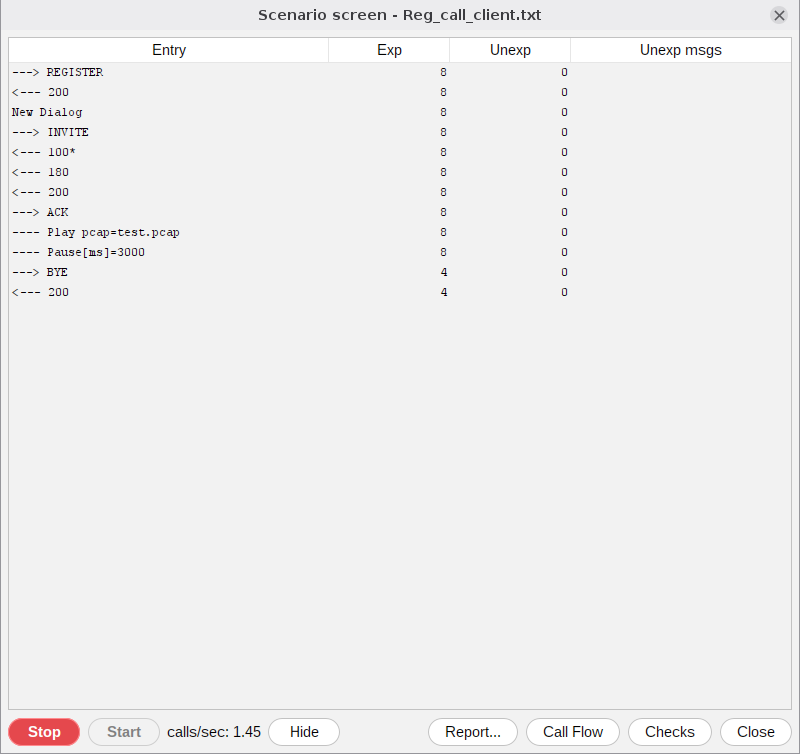
The progress screen shows how well the scenario progresses. Outgoing messages are prefixed with ‘--->’ and incoming messages with ‘<---’. The columns are:
- Exp - how many times the entry was executed as expected: an outgoing message was sent, an incoming message came and matched;
- Unexp - how many unexpected messages arrived while the scenario was at this entry. They do not interrupt the execution. Their summary is in Unexp msgs, for example ‘83x200, 11xNOTIFY, 527x401’; hover over the cell to see the whole text.
At any moment the execution can be stopped (Stop), started from the beginning (Start) or the screen can be closed. Closing the screen interrupts the scenario execution. Hide puts the screen away by minimizing the main window; restoring the main window brings the progress screen back. If the tool works as a client, once all calls are generated the screen shows the measured speed of call generation (calls/sec). When video is processed there is also a Video button. Call Flow shows the messages of a call as a ladder diagram, and Checks what the SIP/SDP checks found; it turns red with the number of problems. See Call flow and SIP and SDP checks.
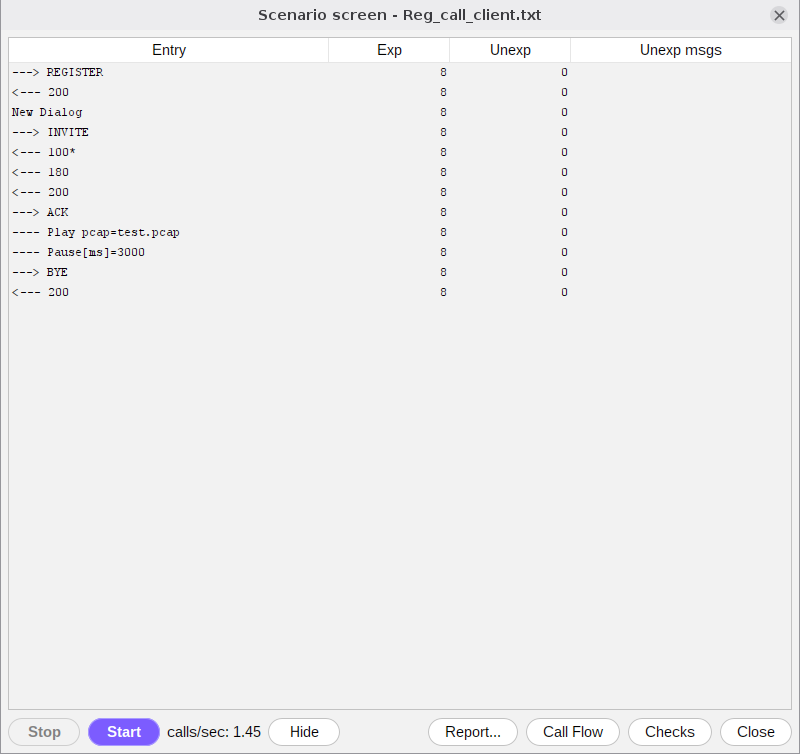
Sometimes calls do not progress as expected and we end up with more unexpected than expected messages. To see what is happening ‘on the wire’ turn on SIP Logging (Options/SIP Logging). See Logging and troubleshooting.
If several scenario files are loaded (batch processing), the progress screen runs them one after another and the summary of each is saved in a file.