Commonly used terms and basic ideas
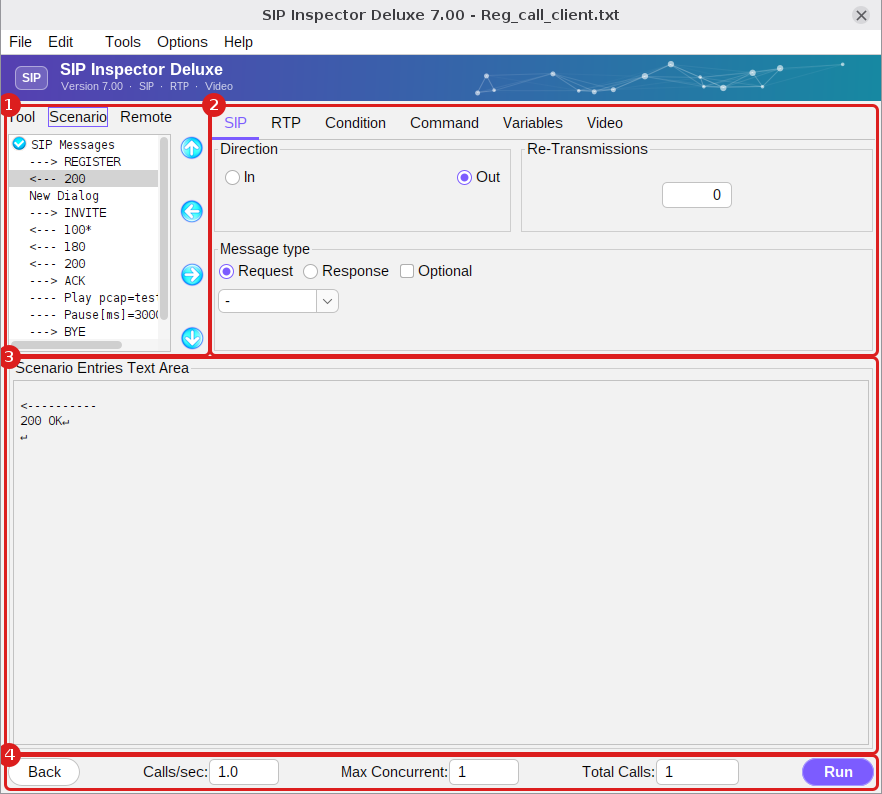
SIP Inspector is intended to troubleshoot and test SIP signalling. This requires the user to create a ‘scenario’. A scenario can be seen as a set of ‘scenario entries’. A scenario entry can be a SIP message, a label, a command, a pause, a variable or another available scenario entry. Entries are placed in the wanted order and, as scenario execution progresses, are executed one after another. In some cases an incoming message may or may not come. Such messages are optional and are marked with an asterisk. Conditional branching is possible with a ‘goto’, which transfers execution to a point in the scenario that is marked with a given label.
Just like when writing source code, try never to use hard-coding. Instead of writing From and To values like ‘1000’ or ‘2000’, use [fromUsername] and [toUsername]. These are called keywords. Before the program sends a message out, all keywords are replaced with their values. Most of the time one scenario represents signalling between an A and a B party. A single scenario can also be repeated for A and B, C and D, E and F, ... For that a values file is used: it holds values that are injected into the scenario, so the same scenario runs with different values.
Initially SIP Inspector was conceived to simulate only signalling. RTP streaming was added later: first RTP played from a pre-captured pcap file, then live speech (G.711 and G.729), then secure RTP (SRTP) and, in version 7, video.
SIP Inspector offers the following scenario execution possibilities:
- the scenario is executed once. To execute it again a user action is required;
- when finished, the scenario is automatically repeated a given number of times;
- the scenario is executed a given number of times, at a given call speed and in parallel;
- every time the scenario is executed the values of certain fields change. For example, the From and To headers differ for every new call that is generated.
The program runs in either GUI or CLI mode. Scenario files are plain text and are the same in both modes, so a scenario that was built and tried in the GUI can be run unattended from a script. The progress of a run, the SIP messages and the program log can be saved to files, which helps to debug problems.