Manual › Running, reports and more
Menu options
There are a few menus. The shortcuts are shown in the menus.
File
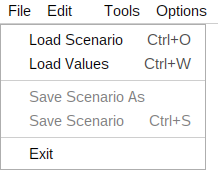
- Load Scenario - loads a scenario. Several files can be selected (batch processing).
- Load Values - loads a values file: one line of values for every call. See Values files: one scenario, many users.
- Save Scenario and Save Scenario As - save the scenario. After working on a scenario you probably want to keep it and use it next time. Comment lines (//) are kept.
- Exit.
Edit
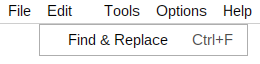
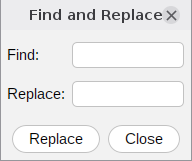
Find & Replace brings up a dialog where strings are replaced in the loaded scenario. It is a convenient way to change several messages at once, for example the numbers in a default scenario: select all the messages, open Find & Replace and replace the strings.
Tools
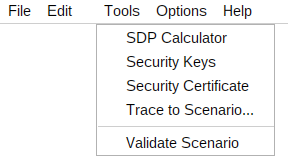
- SDP Calculator - paste an SDP body and it calculates its Content-Length.
- Security Keys - creates PKI keys (public and private).
- Security Certificate - creates a self-signed certificate.
- Trace to Scenario - turns a Wireshark capture into a scenario.
- Validate Scenario - checks the SIP messages of the loaded scenario for common mistakes. See Validating a scenario.
Options
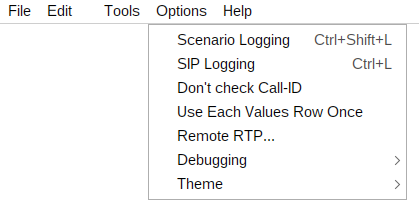
- Scenario Logging - saves the progress screen in the Logs folder.
- SIP Logging - writes the SIP messages to a log file in the Logs folder.
- Don't check Call-ID - used when messages of different dialogs are intertwined. See Don't check Call-ID.
- Use Each Values Row Once - every line of the values file is used by one call, then the run ends. See Values files.
- Remote RTP... - where the RTP stream goes in an unconditional RTP streaming run.
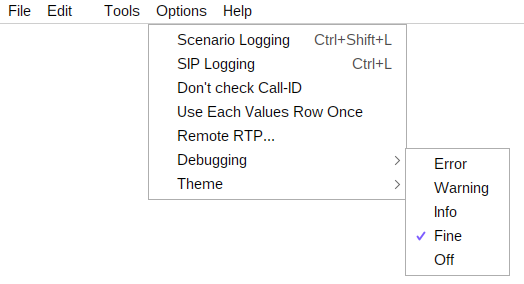
- Debugging - the level of the program log (Error, Warning, Info, Fine or Off). It helps when you report a problem.
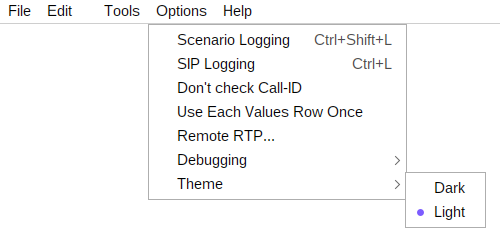
- Theme - Dark or Light. The choice is kept for the next start.
Help
Save Diagnostics - saves the diagnostics bundle: one zip to send with a support question. See The diagnostics bundle.
About - the version, how to contact me, the mailing list and the web site.